

Command Palette & Slash Commands
This guide is for all workspace users (admin, lead, member, viewer).
Opening & Navigating
Section titled “Opening & Navigating”- Press
Ctrl+K(Windows/Linux) orCmd+K(macOS) to open the Command Bar. - Press
/at the start of the input to enter Slash Command mode. - Press
Ctrl+/(Cmd+/) or run/helpto open the categorized Command Reference.
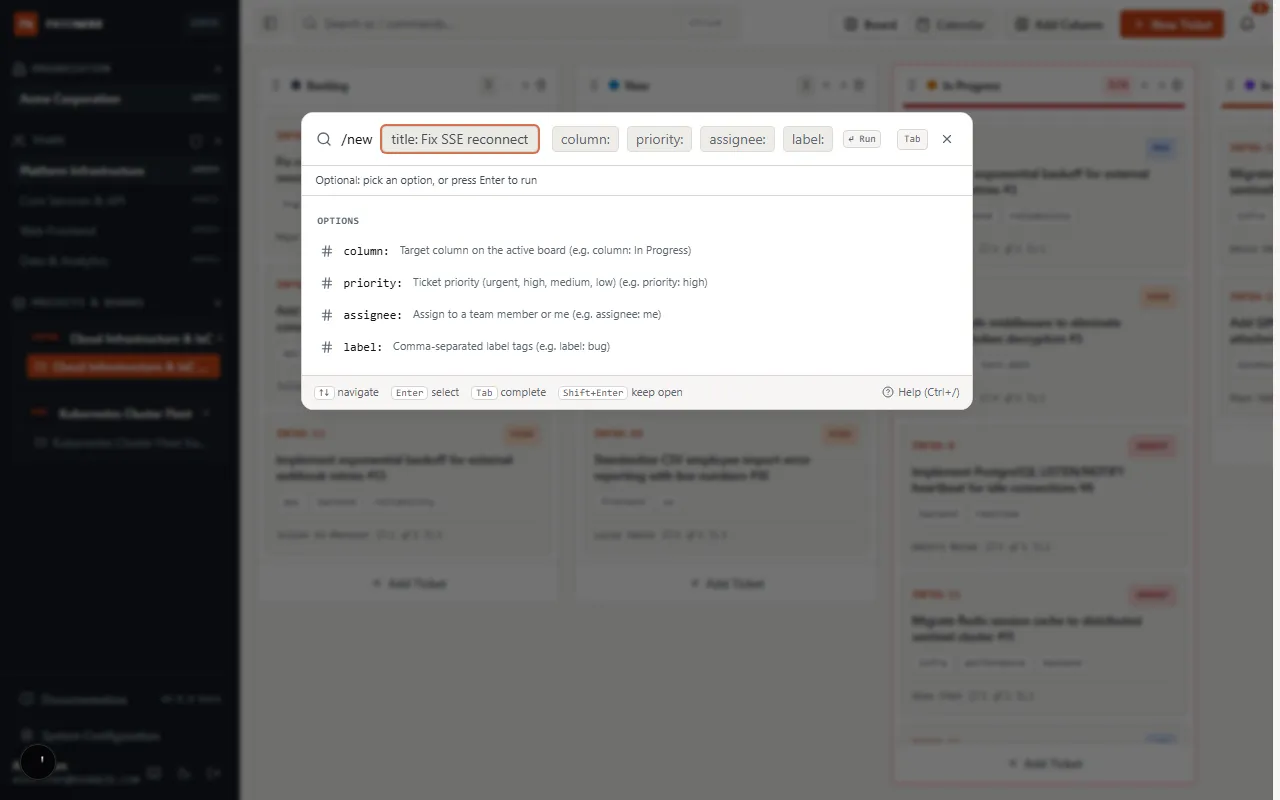
Inline Argument Pills & Option Completion
Section titled “Inline Argument Pills & Option Completion”- Inline labeled fields: After typing a valid command and a space (e.g.,
/newor/move), Patchwork turns each argument into an inline labeled pill (title: ...,ticket: ...,column: ...) whose typed value stays inside the pill. - Argument types:
wordarguments (such as ticket keys or users) advance to the next pill onSpace;textarguments (such as ticket titles or comments) keepSpaceliteral;choicearguments (such as columns) keepSpaceliteral while matching a multi-word option name. - Optional pills: Once the active argument has a value, unused optional keys (
column:,priority:,assignee:,label:) appear as ghost pills. PressTab, click a ghost pill, or choose an option from the list to turn it into an editable pill; click×or pressBackspacewhen empty to remove it. - Navigation, Paste & Undo: Use
ArrowLeft/ArrowRight,Tab/Shift+Tab, andBackspaceto move across pills, paste full positional orlabel: valuecommands directly into pills, and pressCtrl+Z/Shift+Ctrl+Z(Cmd+Z/Shift+Cmd+Zon macOS) to undo or redo pill edits.
Execution, Shift+Enter, Undo & History
Section titled “Execution, Shift+Enter, Undo & History”Enter: Runs the command when ready and closes the bar.Shift+Enter: Runs the command and keeps the bar open for rapid batch entry.- Post-command snackbar: Shows a 5-second notification (
aria-live="polite") with Open (for created/targeted tickets) and Undo (for undoable commands such as/move,/assign,/priority,/label,/due,/rename). - Destructive confirmation:
/deleteand/archivedisplay ticket context (title, column, assignee) with Cancel focused by default; pressCtrl+Enter(Cmd+Enter) to confirm. - Session history: On a bare
/,ArrowUpandArrowDownrecall safe commands from the current session (destructive commands and/commentare excluded; history clears on logout).
Full Command Reference
Section titled “Full Command Reference”See Command Palette & Shortcuts Reference for every command, usage format, argument, option, and role requirement.
You can also open the built-in documentation directly from the palette by running /docs (with an optional topic such as /docs command-palette or /docs troubleshooting) or by searching documentation in normal search mode.